Setting Up a Golang Web Server on EC2 with a Free SSL Cert and No Load Balancer

EC2 Instance Setup

Create a new EC2 instance. This example was done on amazon-linux but I think it would probably be better to use ubuntu next time.

If you do use ubuntu note that you’ll need to use apt instead of yum and will likely have to open ports 80 and 443 on the instance.

All instance types will need to have ports 443 and 80 opened via your linked security group.

Creating the backend domain

I have purchased a domain name from namecheap (~$1.50/yr). To get it this cheap it needs to be 6-10 numbers only with the xyz extension.

To manage dns via route53 we create a new hosted zone and then add the following nameservers on namecheap’s dns manager:

ns-596.awsdns-10.net.
ns-348.awsdns-43.com.
ns-1820.awsdns-35.co.uk.
ns-1429.awsdns-50.org.

We then create a subdomain called mysite1.1234567892.xyz and point it to the EC2 instance’s public IP in route53 19.100.124.17 (as an A record). This will be used for the certificate as well.

Nginx

Installation, note that if using the ubuntu you will need to use apt instead of yum.

sudo yum update
sudo yum install nginx

Verify that its running with systemctl status nginx

Create the configuration:

  • Create a new directory called sites-enabled: sudo mkdir /etc/nginx/sites-enabled
  • Edit the http block using sudo nano /etc/nginx/nginx.conf and add this line: include /etc/nginx/sites-enabled/*;
  • Create the configuration file: sudo nano /etc/nginx/sites-enabled/1234567892

Add the following values to the config file:

server {
  listen 80;
  server_name mysite1.1234567892.xyz;
  location / {
    proxy_set_header  X-Real-IP  $remote_addr;
    proxy_set_header  Host       $http_host;
    proxy_pass        http://127.0.0.1:4800;
  }
}

server {
  listen 80;
  server_name mysite2.1234567892.xyz;
  location / {
    proxy_set_header  X-Real-IP  $remote_addr;
    proxy_set_header  Host       $http_host;
    proxy_pass        http://127.0.0.1:4500;
  }
}

Restart nginx with sudo systemctl restart nginx. Check status again with: systemctl status nginx. To test, go to http://19.100.124.17/ and be sure that it showing as http, not https. Accessing the full http url http://mysite1.1234567892.xyz/ will give a bad gateway error until the application is deployed.

Setup Golang

Here are the steps to install GoLang on an Amazon Linux EC2 instance:

  1. First, connect to your EC2 instance using SSH.
  2. Once connected, update the package lists for upgrades and new package installations: sudo yum update -y
  3. Download the GoLang package. You can find the URL of the latest version on the official website: wget https://golang.org/dl/go1.22.3.linux-amd64.tar.gz
  4. Extract it: sudo tar -C /usr/local -xzf go1.22.3.linux-amd64.tar.gz
  5. Set the Go environment variables. Add these lines to the /etc/profile file (or to the specific user’s profile, like ~/.bash_profile or ~/.bashrc):
    export PATH=$PATH:/usr/local/go/bin
    export GOPATH=$HOME/go
    export PATH=$PATH:$GOPATH/bin
  6. Source the profile: source /etc/profile
  7. Check it installed correctly: go version

Add and then run the following go script on your EC2 instance:

package main

import (
	"errors"
	"fmt"
	"io"
	"net/http"
	"os"
)

func getRoot(w http.ResponseWriter, r *http.Request) {
	fmt.Printf("/ request\n")
	io.WriteString(w, "Website #1!\n")
}
func getPing(w http.ResponseWriter, r *http.Request) {
	fmt.Printf("got /ping request\n")
	io.WriteString(w, "pong HTTP!\n")
}

func main() {
	http.HandleFunc("/", getRoot)
	http.HandleFunc("/ping", getPing)

	err := http.ListenAndServe(":4800", nil)
	if errors.Is(err, http.ErrServerClosed) {
		fmt.Printf("server closed\n")
	} else if err != nil {
		fmt.Printf("error starting server: %s\n", err)
		os.Exit(1)
	}
}

You should then be able to see your application by visit your domain, for example http://mysite1.1234567892.xyz/. We haven’t setup ssl yet so make sure you’ve got http for the protocol.

Setting up SSL

Firstly, we need to setup letsencryt/certbot:

  1. sudo dnf install python3 augeas-libs
  2. sudo python3 -m venv /opt/certbot
  3. sudo /opt/certbot/bin/pip install --upgrade pip
  4. sudo /opt/certbot/bin/pip install certbot certbot-nginx
  5. sudo ln -s /opt/certbot/bin/certbot /usr/bin/certbot

Create a certificate: sudo certbot -n -d mysite1.1234567892.xyz --nginx --agree-tos --email your-email+mysite1@gmail.com

This will also add entries to /etc/nginx/sites-enabled/1234567892. You can also setup auto-renew : https://eff-certbot.readthedocs.io/en/latest/using.html#setting-up-automated-renewal

Your sites should now be accessible via https, for example: https://mysite1.1234567892.xyz/

Thanks to the following links for the info:
https://eff-certbot.readthedocs.io/en/latest/using.html#setting-up-automated-renewal
https://gist.github.com/rschuetzler/793f478fa656cca57181261a266ec127
https://www.digitalocean.com/community/tutorials/how-to-configure-nginx-as-a-reverse-proxy-on-ubuntu-22-04

Adding a Custom Domain Name – AWS SAM

Hi everyone,

It’s been a long time but I’m messing around with AWS SAM again. I’m currently converting www.testerwidgets.com into an AWS SAM application. As part of this I needed to add a custom domain. Unfortunately, the doco on how to do this isn’t great so I’m going to share what ended up working for me just in case it helps someone else.

To start, these are the resources that you’ll need in your template.yaml:

Resources:

  ApiCertificate:
    Type: AWS::CertificateManager::Certificate
    Properties:
      DomainName: !Sub api-${Stage}.YOUR_DOMAIN.com
      ValidationMethod: DNS

  ApiGatewayApi:
    Type: AWS::Serverless::Api
    Properties:
      StageName: !Ref Stage
      # Allows www.YOUR_DOMAIN.com to call these APIs
      # SAM will automatically add AllowMethods with a list of methods for this API
      Cors: "'www.YOUR_DOMAIN.com'"
      EndpointConfiguration: REGIONAL
      Domain:
        DomainName: !Sub api-${Stage}.YOUR_DOMAIN.com
        CertificateArn: !Ref ApiCertificate
        Route53:
          HostedZoneName: "YOUR_DOMAIN.com." # NOTE: The period at the end is required

You’ll also need to make sure your reference the gateway from your function:

  # This lambda function handles is used to test endpoint availability.
  getPing:
    Type: AWS::Serverless::Function
    Properties:
      Handler: src/handlers/get-ping.getPingHandler
      Runtime: nodejs14.x
      Architectures:
        - x86_64
      MemorySize: 128
      Timeout: 30
      Events:
        Api:
          Type: Api
          Properties:
            Path: /ping2 # NOTE: AWS overrides the ping command.
            Method: GET
            RestApiId:
              Ref: ApiGatewayApi # NOTE: Make sure you have this referencing correctly.
      Description: Responds with 'Pong' if successful.

Now when you run AWS deploy it will continue as usual until it gets to the stage of creating your certificate:

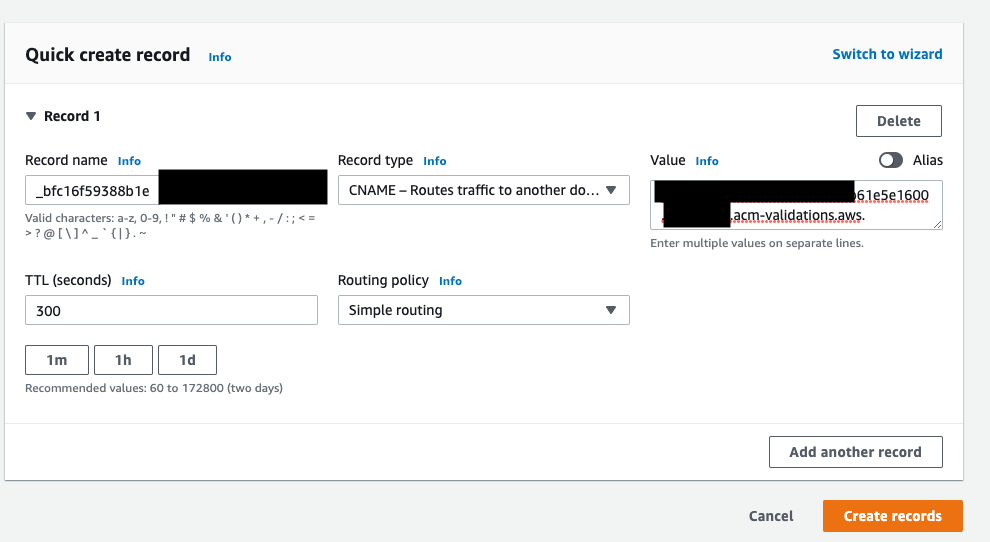
Here it is looking for a specific DNS entry in order to confirm that you own the domain. You’ll need to go into Route53 (or whichever other DNS provider you’re using) and add a CNAME entry with the specified details:

Note that your name and value contents should come from the output of the ApiCertificate job (highlighted in the screenshot above).

Once that’s done you’ll need to wait about sixty seconds for the DNS records to propagate within AWS. You should then be able to access your api using the new domain:

Thanks to the follow github post for the pointers in the right direction: https://github.com/aws/aws-sam-cli/issues/2290

aws sam No hosted zones named found

Note that if you get the error above when trying to deploy please ensure that you’ve added the trailing “.” to your Route53 HostedZoneName in the api-gateway in your template.yaml:

Domain:
        DomainName: !Sub api-${Stage}.yourdomain.com
        CertificateArn: !Ref ApiCertificate
        Route53:
          HostedZoneName: "your-domain.com." # NOTE: The period at the end is required

Configure AWS Route53 domain to point to DigitalOcean name servers

Hey everyone,

This is a quick post on how to point your AWS Route53 domain to DigitalOcean. I’m currently messing around with Kubernetes on DigitalOcean (DOKS) and want to use their name servers to nginx.

The guide I was following (https://github.com/digitalocean/Kubernetes-Starter-Kit-Developers/blob/main/03-setup-ingress-controller/nginx.md) was missing a specific walkthrough for Route53 so I’m just posting what I did in case anyone else finds it useful.

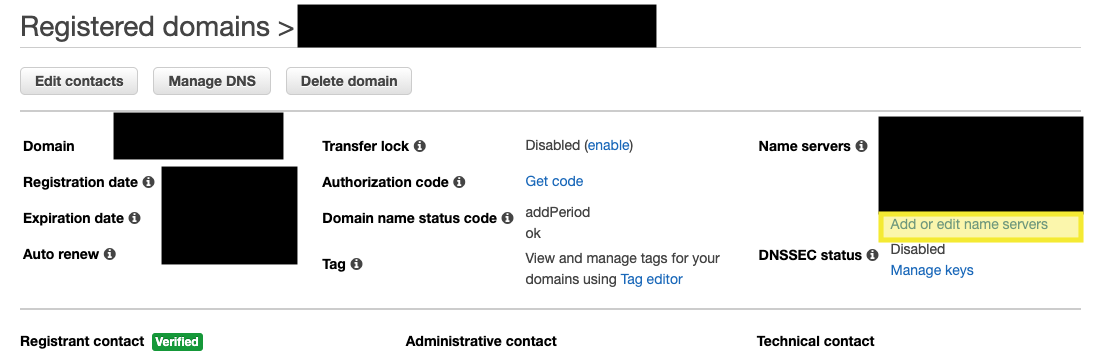
To start, open up the “Registered Domains” tab on Route 53: https://console.aws.amazon.com/route53/home#DomainListing

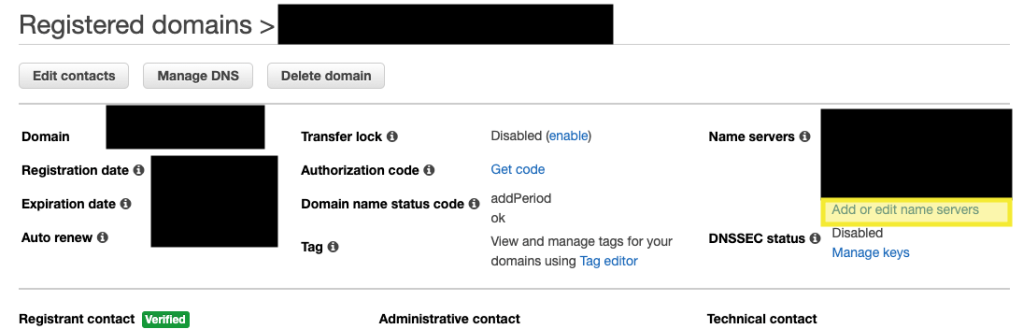
Then click on your domain and under name servers click “Add or edit name servers”:

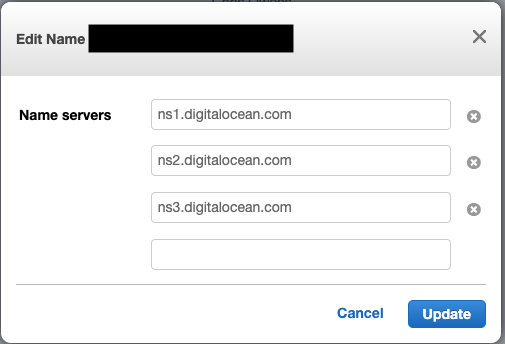
Replace the existing aws nameservers with the digital ocean ones and then click update:

The values that you’ll need to use are:

  • ns1.digitalocean.com
  • ns2.digitalocean.com
  • ns3.digitalocean.com

Note that these changes aren’t immediate. However, you should see a success message and receive an email notification stating the changes have been requested.

I found the AWS doco useful when trying to sort this one out: https://docs.aws.amazon.com/Route53/latest/DeveloperGuide/domain-name-servers-glue-records.html#updating-name-servers-other-dns-service

Custom Error Message for PriceInCents – Vue3 and Vuelidate

Hey everyone,

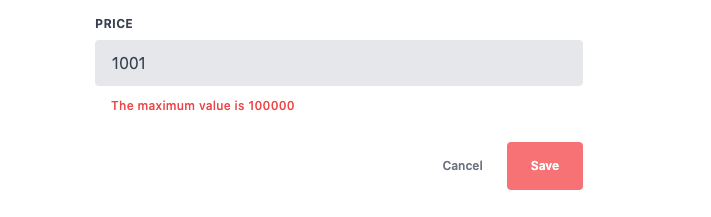
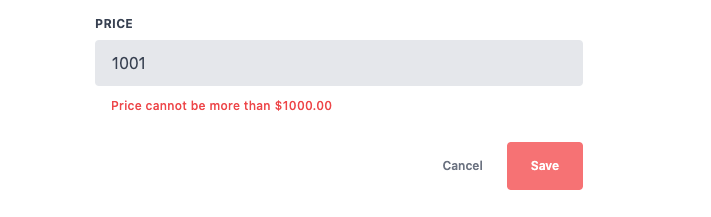
This is a quick post to show how you can add a custom error message when using Vuelidate in Vue3. In my case I have a price field that should not be greater than $1000. The issue is that I store the amount in cents which results in the following error:

This is obviously a little ambiguous to the user who isn’t aware that everything is running in cents behind the scenes. In order to avoid the issue I used a helper in @vuelidate/validates:

// Import the following in your component
import {
  required,  
  maxValue,
  helpers, // Helpers provides access to the message customisation
} from "@vuelidate/validators";

...

// Add the following validation rule
priceInCents: {
          required,
          maxValue: helpers.withMessage("Price cannot be more than $1000.00" , maxValue(100000)),
        },

With the new rule in place the error is much more useful:

While it doesn’t seem to show up on Google too well this functionality is documented by Vuelidate on the following page: https://vuelidate-next.netlify.app/custom_validators.html#custom-error-messages

Create a pre-signed upload url for AWS S3 using Golang

Hi everyone,

This is just a quick post on how to create a pre-signed upload url for AWS S3 using Golang.

The generate the presigned url, you’ll need something like the following:

package main

import (
	"fmt"
	"github.com/joho/godotenv"
	log "github.com/sirupsen/logrus"
	"os"
	"time"

	"github.com/aws/aws-sdk-go/aws"
	"github.com/aws/aws-sdk-go/aws/session"
	"github.com/aws/aws-sdk-go/service/s3"
)

func main() {

	// Load env vars
	err := godotenv.Load(".env")
	if err != nil {
		log.Fatalf("Error loading .env file: %v", err)
	}

	// Load the bucket name
	s3Bucket := os.Getenv("S3_BUCKET")
	if s3Bucket == "" {
		log.Fatal("an s3 bucket was unable to be loaded from env vars")
	}

	// Prepare the S3 request so a signature can be generated
	svc := s3.New(session.New())
	r, _ := svc.PutObjectRequest(&s3.PutObjectInput{
		Bucket: aws.String(s3Bucket),
		Key:    aws.String("test-file.jpg"),
	})

	// Create the pre-signed url with an expiry
	url, err := r.Presign(15 * time.Minute)
	if err != nil {
		fmt.Println("Failed to generate a pre-signed url: ", err)
		return
	}

	// Display the pre-signed url
	fmt.Println("Pre-signed URL", url)
}

Note that we’re using godotenv to load AWS environment variables containing a few AWS keys. You can get godotenv by running the following:

go get github.com/joho/godotenv

I then have a file called “.env” sitting in the root of my working directory:

S3_BUCKET=<YOUR_BUCKET_NAME>
AWS_ACCESS_KEY_ID=<YOUR_AWS_ACCESS_KEY_ID>
AWS_SECRET_ACCESS_KEY=<YOUR_AWS_SECRET_ACCESS_KEY>
AWS_REGION=<YOUR_AWS_REGION>

Once you’ve got all of that setup you can run the script, it should output a link in your console window similar to the following:

Pre-signed URL https://YOUR_BUCKET.s3.YOUR_REGION.amazonaws.com/test-file.jpg?X-Amz-Algorithm=AWS4-HMAC-SHA256&X-Amz-Credential=CREDS&X-Amz-Date=20210717T073809Z&X-Amz-Expires=900&X-Amz-SignedHeaders=host&X-Amz-Signature=GENERATED_SIG

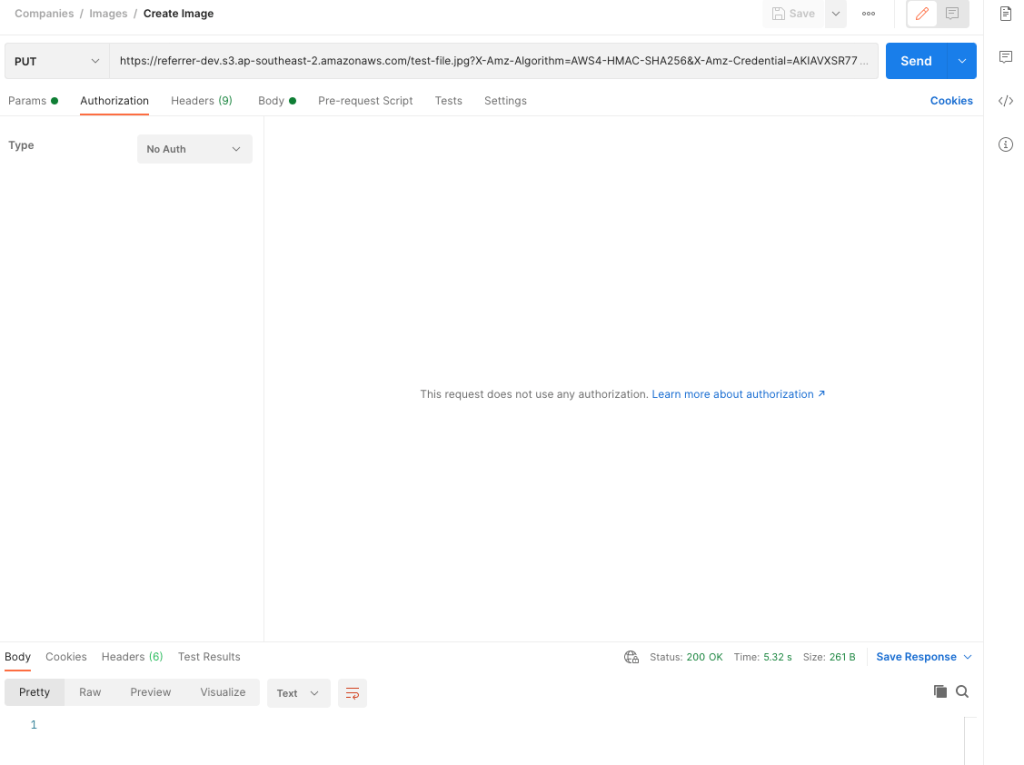
To test the url you can use something like Postman with the following configuration:

Simply pasting the url into the path should populate the headers for you. As for the body, select “binary” and browse for an image. When you’re ready, click “Send”.

You should get a 200 OK response and now be able to see your uploaded image in your destination bucket. Unless you’ve changed the key it should be under the name “test-file.jpg”.

One of the main advantages of using a pre-signed url is that it allows you to upload images directly to AWS and bypass your backend server completely. You can also use it to sign image retrievals. This allows you to give the links a limited life-span – great for preventing hot-linking.

Thanks to the following GitHub post for pointing me in the right direction: https://github.com/aws/aws-sdk-go/issues/467#issuecomment-171468806

Viewing SQL Logs in MySql

Hi everyone,

I’ve recently switched from PostgreSQL and MSSQL to MySQL. I ran into a bit of an issue today where I needed to see the queries I was generating for an insert statement. For MSSQL I’d normally use SQL profiler.

After a bit of Googling I came across the following solution for MySQL:

-- Enable the logging
SET GLOBAL log_output = 'TABLE';
SET GLOBAL general_log = 'ON';

-- View the results
SELECT *
FROM mysql.general_log
ORDER BY event_time DESC;

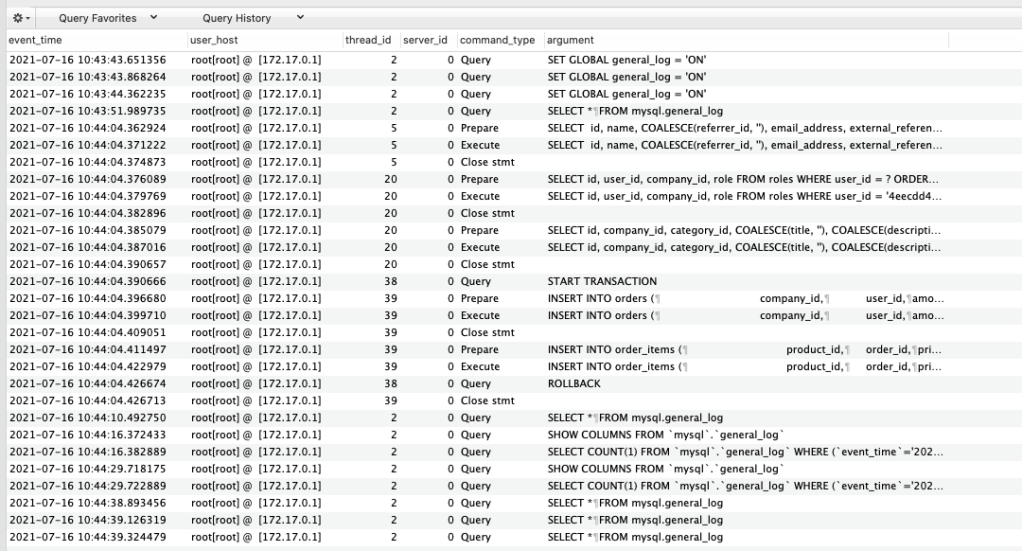
Running this in Sequel Pro displays an output similar to the following:

Sequel Pro screenshot of logging output for MySQL

Thanks to the following StackOverflow post for the info: https://stackoverflow.com/a/678310/522859

AKS Template for Azure Bicep

Hi everyone,

I’ve added AKS to my Azure environment today using Bicep. This is the Bicep template I ended up using in case it’s useful:

@description('The name of the Managed Cluster resource.')
param clusterName string

@description('The location of the Managed Cluster resource.')
param location string = resourceGroup().location

@description('Optional DNS prefix to use with hosted Kubernetes API server FQDN.')
param dnsPrefix string

@minValue(0)
@maxValue(1023)
@description('Disk size (in GB) to provision for each of the agent pool nodes. This value ranges from 0 to 1023. Specifying 0 will apply the default disk size for that agentVMSize.')
param osDiskSizeGB int = 0

@minValue(1)
@maxValue(50)
@description('The number of nodes for the cluster.')
param agentCount int = 1

@description('The size of the Virtual Machine. Currently the cheapest is Standard_B2s: https://azureprice.net/?currency=AUD®ion=eastus2')
param agentVMSize string = 'Standard_B2s'

@description('User name for the Linux Virtual Machines.')
param linuxAdminUsername string

@description('Configure all linux machines with the SSH RSA public key string. Your key should include three parts, for example \'ssh-rsa AAAAB...snip...UcyupgH azureuser@linuxvm\'')
param sshRSAPublicKey string

@allowed([
  'Linux'
])
@description('The type of operating system.')
param osType string = 'Linux'

resource clusterName_resource 'Microsoft.ContainerService/managedClusters@2020-03-01' = {
  name: clusterName
  location: location
  properties: {
    dnsPrefix: dnsPrefix
    agentPoolProfiles: [
      {
        name: 'agentpool'
        osDiskSizeGB: osDiskSizeGB
        count: agentCount
        vmSize: agentVMSize
        osType: osType
        type: 'VirtualMachineScaleSets'
        mode: 'System' // https://github.com/Azure/AKS/issues/1568#issuecomment-619642862
      }
    ]
    linuxProfile: {
      adminUsername: linuxAdminUsername
      ssh: {
        publicKeys: [
          {
            keyData: sshRSAPublicKey
          }
        ]
      }
    }
  }
  identity: {
    type: 'SystemAssigned'
  }
}

output controlPlaneFQDN string = reference(clusterName).fqdn

See this link for more info on what each of the parameters do: https://docs.microsoft.com/en-us/azure/aks/kubernetes-walkthrough-rm-template

One thing to note is that reversing this template didn’t immediately work. I had to add the node pool with a mode of “system”. See the following github thread for more info: https://github.com/Azure/AKS/issues/1568#issuecomment-619642862

Container Registry Template for Azure Bicep

Hi everyone,

Just another Bicep template I’m using – this one is for a basic container registry:

param namePrefix string
param location string = resourceGroup().location
param tier string = 'Basic'

var registryName = '${namePrefix}${uniqueString(resourceGroup().id)}'

resource container_registry 'Microsoft.ContainerRegistry/registries@2020-11-01-preview' = {
  name: registryName
  location: location
  sku: {
    name: tier
  }
  properties: {
    adminUserEnabled: false
    policies: {
      quarantinePolicy: {
        status: 'disabled'
      }
      trustPolicy: {
        type: 'Notary'
        status: 'disabled'
      }
      retentionPolicy: {
        days: 7
        status: 'disabled'
      }
    }
    encryption: {
      status: 'disabled'
    }
    dataEndpointEnabled: false
    publicNetworkAccess: 'Enabled'
    networkRuleBypassOptions: 'AzureServices'
    zoneRedundancy: 'Disabled'
    anonymousPullEnabled: false
  }
}

output id string = container_registry.id

See the following definition if you need more info on some of the properties: https://docs.microsoft.com/en-us/azure/templates/microsoft.containerregistry/2019-12-01-preview/registries?tabs=json

Key Vault Template for Azure Bicep

Hi everyone,

I’m currently mucking around with Bicep as a replacement for plain ARM templates. I’ve just created a key vault and thought I’d share it in case anyone else finds it useful:

param namePrefix string
param location string = resourceGroup().location
param tenantId string

var name = '${namePrefix}${uniqueString(resourceGroup().id)}'

resource key_vault 'Microsoft.KeyVault/vaults@2019-09-01' = {
  name: name
  location: location
  properties: {
    sku: {
      family: 'A'
      name: 'standard'
    }    
    tenantId: tenantId
  }
}

resource my_test_secret 'Microsoft.KeyVault/vaults/secrets@2019-09-01' = {
  name: '${key_vault.name}/my-test-secret'
  properties: {
    attributes: {
      enabled: true
    }
  }
}

If you want to add any other properties checkout the arm template definition: https://docs.microsoft.com/en-us/azure/templates/microsoft.keyvault/2019-09-01/vaults?tabs=json

Setup MongoDB on an Azure VM

Hi everyone,

I’m currently using a small linux vm to host a MongoDB instance on Azure. These are the steps I followed:

## MongoDB

### Install
https://docs.mongodb.com/manual/tutorial/install-mongodb-on-ubuntu/

1. Import the public key: `wget -qO - https://www.mongodb.org/static/pgp/server-4.4.asc | sudo apt-key add -`
2. Create a list file:  `echo "deb [ arch=amd64,arm64 ] https://repo.mongodb.org/apt/ubuntu bionic/mongodb-org/4.4 multiverse" | sudo tee /etc/apt/sources.list.d/mongodb-org-4.4.list`
   - This is for Ubuntu 18.04, check version using `lsb_release -a` 
3. Reload the local package database: `sudo apt-get update`
4. Install MongoDb: `sudo apt-get install -y mongodb-org`
5. Pin the version to prevent automatic upgrades 
```
echo "mongodb-org hold" | sudo dpkg --set-selections
echo "mongodb-org-server hold" | sudo dpkg --set-selections
echo "mongodb-org-shell hold" | sudo dpkg --set-selections
echo "mongodb-org-mongos hold" | sudo dpkg --set-selections
echo "mongodb-org-tools hold" | sudo dpkg --set-selections
```

### Allow remote access
https://www.digitalocean.com/community/tutorials/how-to-configure-remote-access-for-mongodb-on-ubuntu-20-04

1. sudo nano /etc/mongod.conf
2. Find the `network interfaces` section
3. Find the `bindIp` value
4. Append the public ip of your vm to this address list `bindIp: 0.0.0.0`
   - *Note that this is the VM ip not the ip of the machine you plan to connect from.*
5. Restart MongoDB `sudo systemctl restart mongod`

### Add authentication
1. Connect to the instance from an ssh connection: `mongo --port 27017'
2. Create the user:
https://stackoverflow.com/a/38921949/522859
```
db.createUser(
  {
    user: "YOUR_USERNAME",
    pwd: "YOUR_PASSWORD",
    roles: [ { role: "root", db: "admin" } ]
  }
)
```
3. Restart with access control: `mongod --auth --port 27017 --dbpath /data/db1`
4. Authenticate as the user adminstrator: `mongo --port 27017 -u "YOUR_USERNAME" -p "YOUR_PASSWORD"  --authenticationDatabase "admin"`
5. Locate the commented out security heading and uncomment it.
6. Add `authorized: enabled`
```
security:
  authorization: enabled
```
7. Restart with access control: `mongod --auth --port 27017 --dbpath /data/db1`