Setting Up a Golang Web Server on EC2 with a Free SSL Cert and No Load Balancer

EC2 Instance Setup

Create a new EC2 instance. This example was done on amazon-linux but I think it would probably be better to use ubuntu next time.

If you do use ubuntu note that you’ll need to use apt instead of yum and will likely have to open ports 80 and 443 on the instance.

All instance types will need to have ports 443 and 80 opened via your linked security group.

Creating the backend domain

I have purchased a domain name from namecheap (~$1.50/yr). To get it this cheap it needs to be 6-10 numbers only with the xyz extension.

To manage dns via route53 we create a new hosted zone and then add the following nameservers on namecheap’s dns manager:

ns-596.awsdns-10.net.
ns-348.awsdns-43.com.
ns-1820.awsdns-35.co.uk.
ns-1429.awsdns-50.org.

We then create a subdomain called mysite1.1234567892.xyz and point it to the EC2 instance’s public IP in route53 19.100.124.17 (as an A record). This will be used for the certificate as well.

Nginx

Installation, note that if using the ubuntu you will need to use apt instead of yum.

sudo yum update
sudo yum install nginx

Verify that its running with systemctl status nginx

Create the configuration:

  • Create a new directory called sites-enabled: sudo mkdir /etc/nginx/sites-enabled
  • Edit the http block using sudo nano /etc/nginx/nginx.conf and add this line: include /etc/nginx/sites-enabled/*;
  • Create the configuration file: sudo nano /etc/nginx/sites-enabled/1234567892

Add the following values to the config file:

server {
  listen 80;
  server_name mysite1.1234567892.xyz;
  location / {
    proxy_set_header  X-Real-IP  $remote_addr;
    proxy_set_header  Host       $http_host;
    proxy_pass        http://127.0.0.1:4800;
  }
}

server {
  listen 80;
  server_name mysite2.1234567892.xyz;
  location / {
    proxy_set_header  X-Real-IP  $remote_addr;
    proxy_set_header  Host       $http_host;
    proxy_pass        http://127.0.0.1:4500;
  }
}

Restart nginx with sudo systemctl restart nginx. Check status again with: systemctl status nginx. To test, go to http://19.100.124.17/ and be sure that it showing as http, not https. Accessing the full http url http://mysite1.1234567892.xyz/ will give a bad gateway error until the application is deployed.

Setup Golang

Here are the steps to install GoLang on an Amazon Linux EC2 instance:

  1. First, connect to your EC2 instance using SSH.
  2. Once connected, update the package lists for upgrades and new package installations: sudo yum update -y
  3. Download the GoLang package. You can find the URL of the latest version on the official website: wget https://golang.org/dl/go1.22.3.linux-amd64.tar.gz
  4. Extract it: sudo tar -C /usr/local -xzf go1.22.3.linux-amd64.tar.gz
  5. Set the Go environment variables. Add these lines to the /etc/profile file (or to the specific user’s profile, like ~/.bash_profile or ~/.bashrc):
    export PATH=$PATH:/usr/local/go/bin
    export GOPATH=$HOME/go
    export PATH=$PATH:$GOPATH/bin
  6. Source the profile: source /etc/profile
  7. Check it installed correctly: go version

Add and then run the following go script on your EC2 instance:

package main

import (
	"errors"
	"fmt"
	"io"
	"net/http"
	"os"
)

func getRoot(w http.ResponseWriter, r *http.Request) {
	fmt.Printf("/ request\n")
	io.WriteString(w, "Website #1!\n")
}
func getPing(w http.ResponseWriter, r *http.Request) {
	fmt.Printf("got /ping request\n")
	io.WriteString(w, "pong HTTP!\n")
}

func main() {
	http.HandleFunc("/", getRoot)
	http.HandleFunc("/ping", getPing)

	err := http.ListenAndServe(":4800", nil)
	if errors.Is(err, http.ErrServerClosed) {
		fmt.Printf("server closed\n")
	} else if err != nil {
		fmt.Printf("error starting server: %s\n", err)
		os.Exit(1)
	}
}

You should then be able to see your application by visit your domain, for example http://mysite1.1234567892.xyz/. We haven’t setup ssl yet so make sure you’ve got http for the protocol.

Setting up SSL

Firstly, we need to setup letsencryt/certbot:

  1. sudo dnf install python3 augeas-libs
  2. sudo python3 -m venv /opt/certbot
  3. sudo /opt/certbot/bin/pip install --upgrade pip
  4. sudo /opt/certbot/bin/pip install certbot certbot-nginx
  5. sudo ln -s /opt/certbot/bin/certbot /usr/bin/certbot

Create a certificate: sudo certbot -n -d mysite1.1234567892.xyz --nginx --agree-tos --email your-email+mysite1@gmail.com

This will also add entries to /etc/nginx/sites-enabled/1234567892. You can also setup auto-renew : https://eff-certbot.readthedocs.io/en/latest/using.html#setting-up-automated-renewal

Your sites should now be accessible via https, for example: https://mysite1.1234567892.xyz/

Thanks to the following links for the info:
https://eff-certbot.readthedocs.io/en/latest/using.html#setting-up-automated-renewal
https://gist.github.com/rschuetzler/793f478fa656cca57181261a266ec127
https://www.digitalocean.com/community/tutorials/how-to-configure-nginx-as-a-reverse-proxy-on-ubuntu-22-04
Golang and MySQL – DigitalOcean managed cluster

Hey everyone,

Just sharing a helper function to get you started when trying to connect to a mysql managed cluster on DigitalOcean with Golang.

Before we get into the code you’ll need to grab a couple of things from the database dashboard (on DigitalOcean).

  • Open the databases tab
  • Look for the “Connection Details” section
  • Download your ca cert file
  • Copy down your “public network” settings
    • If you’re moving this into a cluster you can use the “private network” settings instead
// initDb creates initialises the connection to mysql
func initDb(connectionString string, caCertPath string) (*sql.DB, error) {

	log.Infof("initialising db connection")

	// Prepare ssl if required: https://stackoverflow.com/a/54189333/522859
	if caCertPath != "" {

		log.Infof("Loading the ca-cert: %v", caCertPath)

		// Load the CA cert
		certBytes, err := ioutil.ReadFile(caCertPath)
		if err != nil {
			log.Fatal("unable to read in the cert file", err)
		}

		caCertPool := x509.NewCertPool()
		if ok := caCertPool.AppendCertsFromPEM(certBytes); !ok {
			log.Fatal("failed-to-parse-sql-ca", err)
		}

		tlsConfig := &tls.Config{
			InsecureSkipVerify: false,
			RootCAs:            caCertPool,
		}

		mysql.RegisterTLSConfig("bbs-tls", tlsConfig)
	}

	var sqlDb, err = sql.Open("mysql", connectionString)
	if err != nil {
		return nil, fmt.Errorf("failed to connect to the database: %v", err)
	}

	// Ensure that the database can be reached
	err = sqlDb.Ping()
	if err != nil {
		return nil, fmt.Errorf("error on opening database connection: %s", err.Error())
	}

	return sqlDb, nil
}

A couple of things to note in the helper above.

  1. You’ll need to provide the path to your downloaded ca-cert as the second argument
  2. Your connection string will need to look something like the following: USERNAME:PASSWORD@tcp(HOST_NAME:PORT_NUMBER)/DB_NAME

Note that the “tcp(…)” bit is required, see the following post for more info: https://whatibroke.com/2021/11/27/failed-to-connect-to-the-database-default-addr-for-network-unknown-mysql-and-golang/

Depending on which version of the mysql driver you’re using you may also need to revert to the legacy auth mechanism: https://docs.digitalocean.com/products/databases/mysql/resources/troubleshoot-connections/#authentication

failed to connect to the database: default addr for network unknown – MySql and Golang

Hey everyone,

I’m currently setting up a mysql database on DigitalOcean and hit the following error when connecting:

failed to connect to the database: default addr for "DATABASE_CONN_STR" network unknown 

Luckily this turned out to be a pretty easy fix. In the mysql driver repo you can see that the only scenario where this error is shown is when the network doesn’t match “tcp” or “unix”.

// Set default network if empty
	if cfg.Net == "" {
		cfg.Net = "tcp"
	}

	// Set default address if empty
	if cfg.Addr == "" {
		switch cfg.Net {
		case "tcp":
			cfg.Addr = "127.0.0.1:3306"
		case "unix":
			cfg.Addr = "/tmp/mysql.sock"
		default:
			return errors.New("default addr for network '" + cfg.Net + "' unknown")
		}

	} else if cfg.Net == "tcp" {
		cfg.Addr = ensureHavePort(cfg.Addr)
	}

To fix it, all that was required was to wrap part of the connection string in tcp or unix.

root:password@db-mysite.com:1234/db_name?ssl-mode=required&timeout=10s
root:password@tcp(db-mysite.com:1234)/db_name?ssl-mode=required&timeout=10s

Note that the host name and port on the second line is now wrapped in “tcp(…)”. In my case I didn’t have either set so I find it a bit strange that the “set default address if empty” check was triggered.

Thanks to this stackoverflow post and github link for the info:

No matches for kind “Deployment” in version “apps/v1beta2” – DigitalOcean

Hey everyone,

I’ve been working on a small golang app and decided to try out Kubernetes on DigitalOcean instead of the usual Azure or AWS. In order to get started I followed the tutorial at this link: https://www.digitalocean.com/community/tutorials/webinar-series-a-closer-look-at-kubernetes

I ran into a small issue while trying to using the provided deployment.yaml.

error: unable to recognize "./api/deploy/prod/deployment.yaml": no matches for kind "Deployment" in version "apps/v1beta2"

This turned out to be an issue with the apiVersion being used. Changing the first line to apps/v1 resolved it:

apiVersion: apps/v1beta2
kind: Deployment
metadata:

apiVersion: apps/v1
kind: Deployment
metadata:

Thanks to this link on github for pointing me in the right direction: https://github.com/coreos/etcd-operator/issues/2126

Create a pre-signed upload url for AWS S3 using Golang

Hi everyone,

This is just a quick post on how to create a pre-signed upload url for AWS S3 using Golang.

The generate the presigned url, you’ll need something like the following:

package main

import (
	"fmt"
	"github.com/joho/godotenv"
	log "github.com/sirupsen/logrus"
	"os"
	"time"

	"github.com/aws/aws-sdk-go/aws"
	"github.com/aws/aws-sdk-go/aws/session"
	"github.com/aws/aws-sdk-go/service/s3"
)

func main() {

	// Load env vars
	err := godotenv.Load(".env")
	if err != nil {
		log.Fatalf("Error loading .env file: %v", err)
	}

	// Load the bucket name
	s3Bucket := os.Getenv("S3_BUCKET")
	if s3Bucket == "" {
		log.Fatal("an s3 bucket was unable to be loaded from env vars")
	}

	// Prepare the S3 request so a signature can be generated
	svc := s3.New(session.New())
	r, _ := svc.PutObjectRequest(&s3.PutObjectInput{
		Bucket: aws.String(s3Bucket),
		Key:    aws.String("test-file.jpg"),
	})

	// Create the pre-signed url with an expiry
	url, err := r.Presign(15 * time.Minute)
	if err != nil {
		fmt.Println("Failed to generate a pre-signed url: ", err)
		return
	}

	// Display the pre-signed url
	fmt.Println("Pre-signed URL", url)
}

Note that we’re using godotenv to load AWS environment variables containing a few AWS keys. You can get godotenv by running the following:

go get github.com/joho/godotenv

I then have a file called “.env” sitting in the root of my working directory:

S3_BUCKET=<YOUR_BUCKET_NAME>
AWS_ACCESS_KEY_ID=<YOUR_AWS_ACCESS_KEY_ID>
AWS_SECRET_ACCESS_KEY=<YOUR_AWS_SECRET_ACCESS_KEY>
AWS_REGION=<YOUR_AWS_REGION>

Once you’ve got all of that setup you can run the script, it should output a link in your console window similar to the following:

Pre-signed URL https://YOUR_BUCKET.s3.YOUR_REGION.amazonaws.com/test-file.jpg?X-Amz-Algorithm=AWS4-HMAC-SHA256&X-Amz-Credential=CREDS&X-Amz-Date=20210717T073809Z&X-Amz-Expires=900&X-Amz-SignedHeaders=host&X-Amz-Signature=GENERATED_SIG

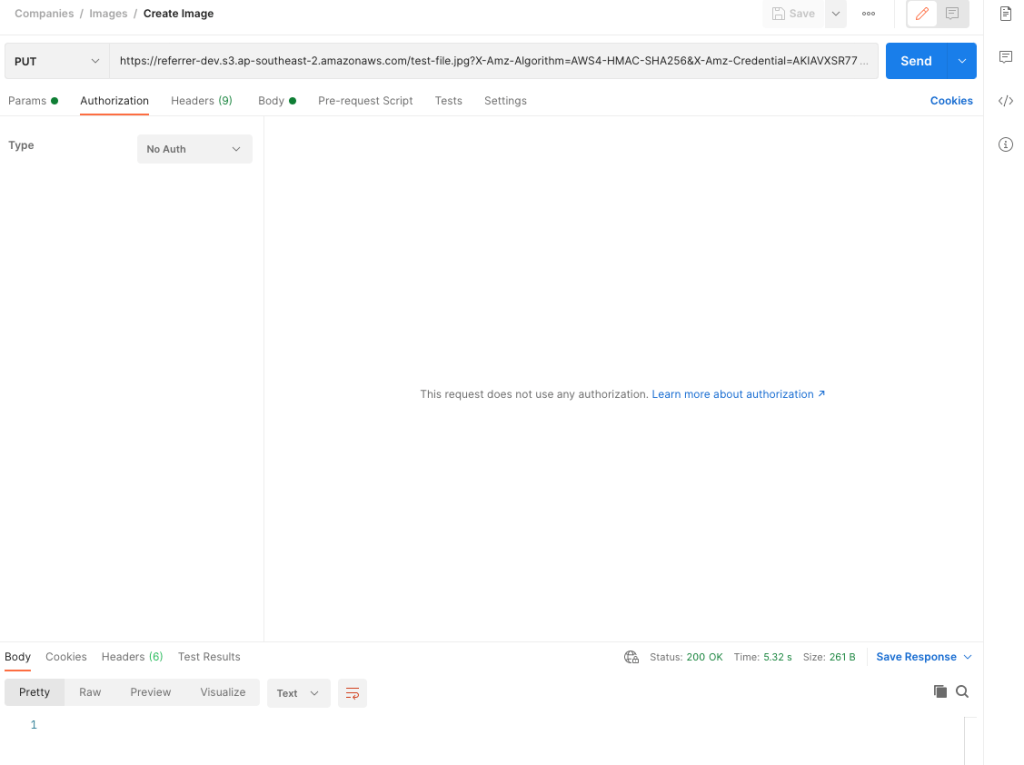
To test the url you can use something like Postman with the following configuration:

Simply pasting the url into the path should populate the headers for you. As for the body, select “binary” and browse for an image. When you’re ready, click “Send”.

You should get a 200 OK response and now be able to see your uploaded image in your destination bucket. Unless you’ve changed the key it should be under the name “test-file.jpg”.

One of the main advantages of using a pre-signed url is that it allows you to upload images directly to AWS and bypass your backend server completely. You can also use it to sign image retrievals. This allows you to give the links a limited life-span – great for preventing hot-linking.

Thanks to the following GitHub post for pointing me in the right direction: https://github.com/aws/aws-sdk-go/issues/467#issuecomment-171468806

Avoiding “declared but not used” in Golang while testing

Hi everyone,

I come from a mostly JavaScript and .NET background and am currently transitioning to Golang. I’m really liking the language and ecosystem so far but one thing that has irked me a little is that I can’t leave variables as placeholders or even for debugging.

var placeholder1 [][]string
var test1 string

Something as simple as the above results in two compiler errors stating that the variables are declared but not used`.

A bit of Googling showed quite a few people with similar complaints, but there was one solution that seemed to fit my use-case pretty well:

var placeholder1 [][]string
var test1 string

// Use discards
_, _ = placeholder1, test1

By simply using a discard the compilation error can be circumvented. There’s a fairly detailed discussion on Stackoverflow: https://stackoverflow.com/a/62951339/522859