Setting Up a Golang Web Server on EC2 with a Free SSL Cert and No Load Balancer

EC2 Instance Setup

Create a new EC2 instance. This example was done on amazon-linux but I think it would probably be better to use ubuntu next time.

If you do use ubuntu note that you’ll need to use apt instead of yum and will likely have to open ports 80 and 443 on the instance.

All instance types will need to have ports 443 and 80 opened via your linked security group.

Creating the backend domain

I have purchased a domain name from namecheap (~$1.50/yr). To get it this cheap it needs to be 6-10 numbers only with the xyz extension.

To manage dns via route53 we create a new hosted zone and then add the following nameservers on namecheap’s dns manager:

ns-596.awsdns-10.net.
ns-348.awsdns-43.com.
ns-1820.awsdns-35.co.uk.
ns-1429.awsdns-50.org.

We then create a subdomain called mysite1.1234567892.xyz and point it to the EC2 instance’s public IP in route53 19.100.124.17 (as an A record). This will be used for the certificate as well.

Nginx

Installation, note that if using the ubuntu you will need to use apt instead of yum.

sudo yum update
sudo yum install nginx

Verify that its running with systemctl status nginx

Create the configuration:

  • Create a new directory called sites-enabled: sudo mkdir /etc/nginx/sites-enabled
  • Edit the http block using sudo nano /etc/nginx/nginx.conf and add this line: include /etc/nginx/sites-enabled/*;
  • Create the configuration file: sudo nano /etc/nginx/sites-enabled/1234567892

Add the following values to the config file:

server {
  listen 80;
  server_name mysite1.1234567892.xyz;
  location / {
    proxy_set_header  X-Real-IP  $remote_addr;
    proxy_set_header  Host       $http_host;
    proxy_pass        http://127.0.0.1:4800;
  }
}

server {
  listen 80;
  server_name mysite2.1234567892.xyz;
  location / {
    proxy_set_header  X-Real-IP  $remote_addr;
    proxy_set_header  Host       $http_host;
    proxy_pass        http://127.0.0.1:4500;
  }
}

Restart nginx with sudo systemctl restart nginx. Check status again with: systemctl status nginx. To test, go to http://19.100.124.17/ and be sure that it showing as http, not https. Accessing the full http url http://mysite1.1234567892.xyz/ will give a bad gateway error until the application is deployed.

Setup Golang

Here are the steps to install GoLang on an Amazon Linux EC2 instance:

  1. First, connect to your EC2 instance using SSH.
  2. Once connected, update the package lists for upgrades and new package installations: sudo yum update -y
  3. Download the GoLang package. You can find the URL of the latest version on the official website: wget https://golang.org/dl/go1.22.3.linux-amd64.tar.gz
  4. Extract it: sudo tar -C /usr/local -xzf go1.22.3.linux-amd64.tar.gz
  5. Set the Go environment variables. Add these lines to the /etc/profile file (or to the specific user’s profile, like ~/.bash_profile or ~/.bashrc):
    export PATH=$PATH:/usr/local/go/bin
    export GOPATH=$HOME/go
    export PATH=$PATH:$GOPATH/bin
  6. Source the profile: source /etc/profile
  7. Check it installed correctly: go version

Add and then run the following go script on your EC2 instance:

package main

import (
	"errors"
	"fmt"
	"io"
	"net/http"
	"os"
)

func getRoot(w http.ResponseWriter, r *http.Request) {
	fmt.Printf("/ request\n")
	io.WriteString(w, "Website #1!\n")
}
func getPing(w http.ResponseWriter, r *http.Request) {
	fmt.Printf("got /ping request\n")
	io.WriteString(w, "pong HTTP!\n")
}

func main() {
	http.HandleFunc("/", getRoot)
	http.HandleFunc("/ping", getPing)

	err := http.ListenAndServe(":4800", nil)
	if errors.Is(err, http.ErrServerClosed) {
		fmt.Printf("server closed\n")
	} else if err != nil {
		fmt.Printf("error starting server: %s\n", err)
		os.Exit(1)
	}
}

You should then be able to see your application by visit your domain, for example http://mysite1.1234567892.xyz/. We haven’t setup ssl yet so make sure you’ve got http for the protocol.

Setting up SSL

Firstly, we need to setup letsencryt/certbot:

  1. sudo dnf install python3 augeas-libs
  2. sudo python3 -m venv /opt/certbot
  3. sudo /opt/certbot/bin/pip install --upgrade pip
  4. sudo /opt/certbot/bin/pip install certbot certbot-nginx
  5. sudo ln -s /opt/certbot/bin/certbot /usr/bin/certbot

Create a certificate: sudo certbot -n -d mysite1.1234567892.xyz --nginx --agree-tos --email your-email+mysite1@gmail.com

This will also add entries to /etc/nginx/sites-enabled/1234567892. You can also setup auto-renew : https://eff-certbot.readthedocs.io/en/latest/using.html#setting-up-automated-renewal

Your sites should now be accessible via https, for example: https://mysite1.1234567892.xyz/

Thanks to the following links for the info:
https://eff-certbot.readthedocs.io/en/latest/using.html#setting-up-automated-renewal
https://gist.github.com/rschuetzler/793f478fa656cca57181261a266ec127
https://www.digitalocean.com/community/tutorials/how-to-configure-nginx-as-a-reverse-proxy-on-ubuntu-22-04
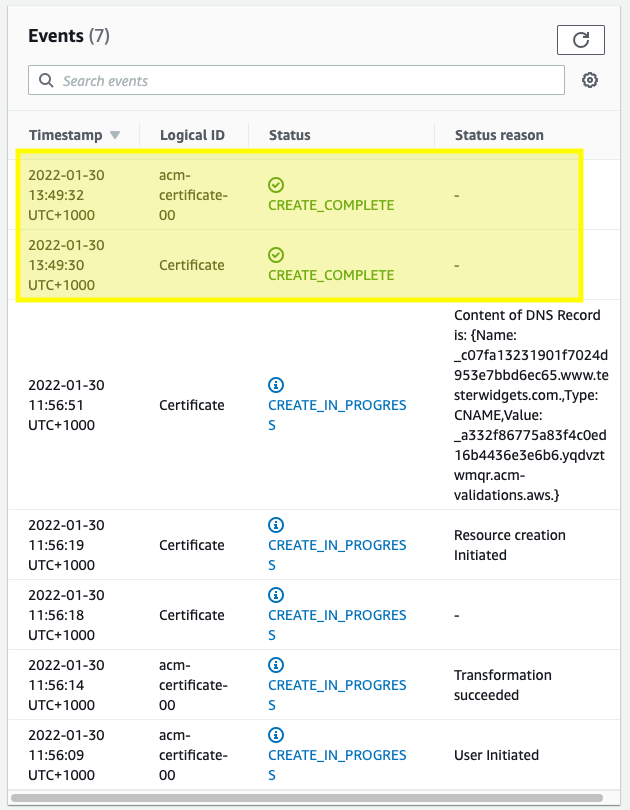
CREATE_IN_PROGRESS when creating a certificate with CloudFormation

Hi everyone,

I ran into a bit of an issue today while creating a certificate with CloudFormation. After kicking the stack off it ended up hanging on a step to create a domain verification entry in Route 53.

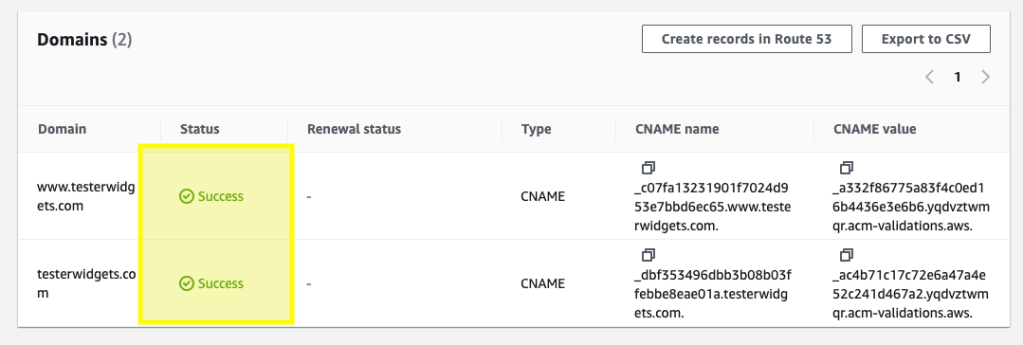
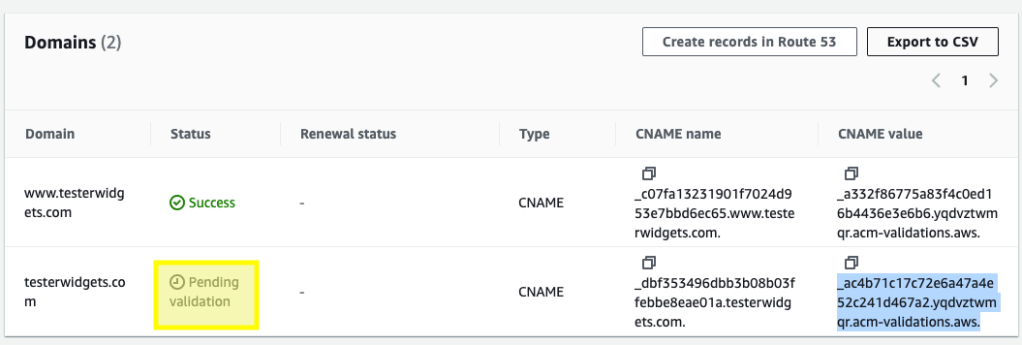
I had used this script multiple times for creating a certificate for a subdomain, but this time I included an apex domain as well. In order to narrow things down a little further I checked out the certificate via the console:

While the subdomain had passed the apex domain was still sitting in pending. Surprisingly, in Route53 the record DID exist. In order to get things moving again I manually deleted the record and then clicked “Create records in Route 53”.

This re-created the record I’d just deleted, and after a couple of minutes the domain validation passed and then the certificate was created:

This was a bit of a weird one that I have been unable to reproduce. I’m not certain why the DNS validation ended up hanging but retriggering the process seems to have resolved it.

Note that there are other legitimate reasons why your deployment might be hanging at this step:

When you use the AWS::CertificateManager::Certificate resource in a CloudFormation stack, domain validation is handled automatically if all three of the following are true: The certificate domain is hosted in Amazon Route 53, the domain resides in your AWS account, and you are using DNS validation.

However, if the certificate uses email validation, or if the domain is not hosted in Route 53, then the stack will remain in the CREATE_IN_PROGRESS state. Further stack operations are delayed until you validate the certificate request, either by acting upon the instructions in the validation email, or by adding a CNAME record to your DNS configuration. For more information, see Option 1: DNS Validation and Option 2: Email Validation.

https://docs.aws.amazon.com/AWSCloudFormation/latest/UserGuide/aws-resource-certificatemanager-certificate.html

Adding a Custom Domain Name – AWS SAM

Hi everyone,

It’s been a long time but I’m messing around with AWS SAM again. I’m currently converting www.testerwidgets.com into an AWS SAM application. As part of this I needed to add a custom domain. Unfortunately, the doco on how to do this isn’t great so I’m going to share what ended up working for me just in case it helps someone else.

To start, these are the resources that you’ll need in your template.yaml:

Resources:

  ApiCertificate:
    Type: AWS::CertificateManager::Certificate
    Properties:
      DomainName: !Sub api-${Stage}.YOUR_DOMAIN.com
      ValidationMethod: DNS

  ApiGatewayApi:
    Type: AWS::Serverless::Api
    Properties:
      StageName: !Ref Stage
      # Allows www.YOUR_DOMAIN.com to call these APIs
      # SAM will automatically add AllowMethods with a list of methods for this API
      Cors: "'www.YOUR_DOMAIN.com'"
      EndpointConfiguration: REGIONAL
      Domain:
        DomainName: !Sub api-${Stage}.YOUR_DOMAIN.com
        CertificateArn: !Ref ApiCertificate
        Route53:
          HostedZoneName: "YOUR_DOMAIN.com." # NOTE: The period at the end is required

You’ll also need to make sure your reference the gateway from your function:

  # This lambda function handles is used to test endpoint availability.
  getPing:
    Type: AWS::Serverless::Function
    Properties:
      Handler: src/handlers/get-ping.getPingHandler
      Runtime: nodejs14.x
      Architectures:
        - x86_64
      MemorySize: 128
      Timeout: 30
      Events:
        Api:
          Type: Api
          Properties:
            Path: /ping2 # NOTE: AWS overrides the ping command.
            Method: GET
            RestApiId:
              Ref: ApiGatewayApi # NOTE: Make sure you have this referencing correctly.
      Description: Responds with 'Pong' if successful.

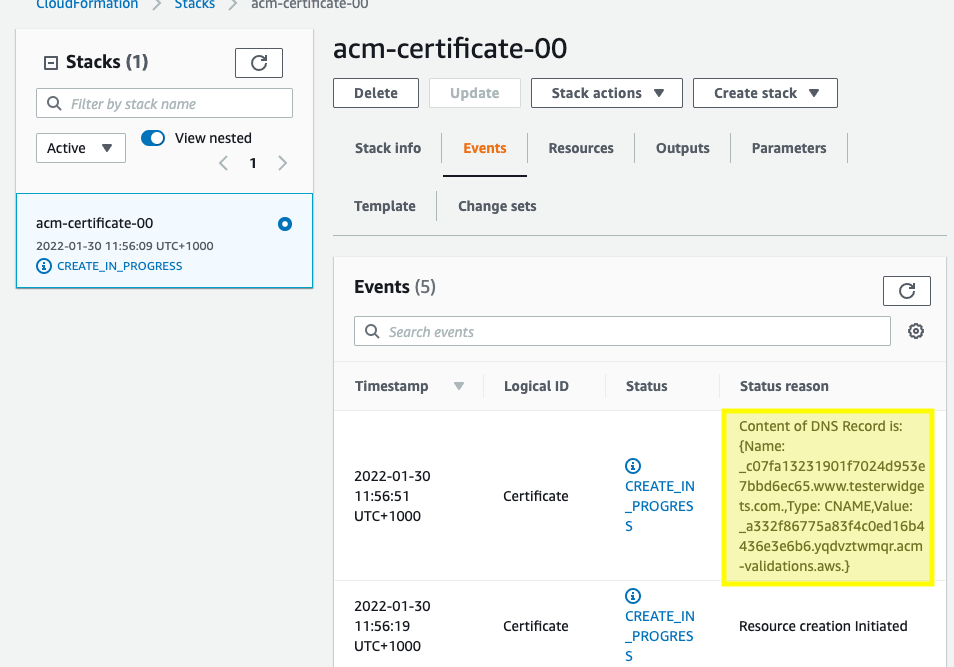
Now when you run AWS deploy it will continue as usual until it gets to the stage of creating your certificate:

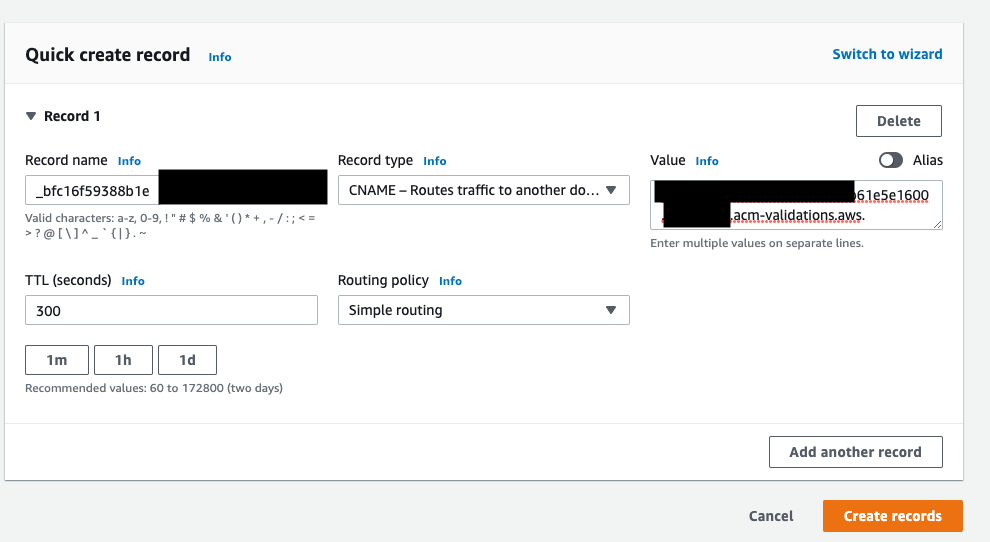
Here it is looking for a specific DNS entry in order to confirm that you own the domain. You’ll need to go into Route53 (or whichever other DNS provider you’re using) and add a CNAME entry with the specified details:

Note that your name and value contents should come from the output of the ApiCertificate job (highlighted in the screenshot above).

Once that’s done you’ll need to wait about sixty seconds for the DNS records to propagate within AWS. You should then be able to access your api using the new domain:

Thanks to the follow github post for the pointers in the right direction: https://github.com/aws/aws-sam-cli/issues/2290

aws sam No hosted zones named found

Note that if you get the error above when trying to deploy please ensure that you’ve added the trailing “.” to your Route53 HostedZoneName in the api-gateway in your template.yaml:

Domain:
        DomainName: !Sub api-${Stage}.yourdomain.com
        CertificateArn: !Ref ApiCertificate
        Route53:
          HostedZoneName: "your-domain.com." # NOTE: The period at the end is required

Configure AWS Route53 domain to point to DigitalOcean name servers

Hey everyone,

This is a quick post on how to point your AWS Route53 domain to DigitalOcean. I’m currently messing around with Kubernetes on DigitalOcean (DOKS) and want to use their name servers to nginx.

The guide I was following (https://github.com/digitalocean/Kubernetes-Starter-Kit-Developers/blob/main/03-setup-ingress-controller/nginx.md) was missing a specific walkthrough for Route53 so I’m just posting what I did in case anyone else finds it useful.

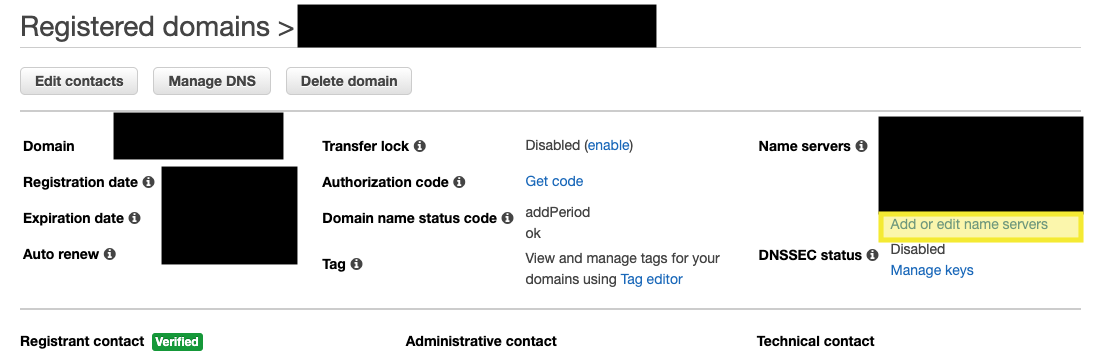
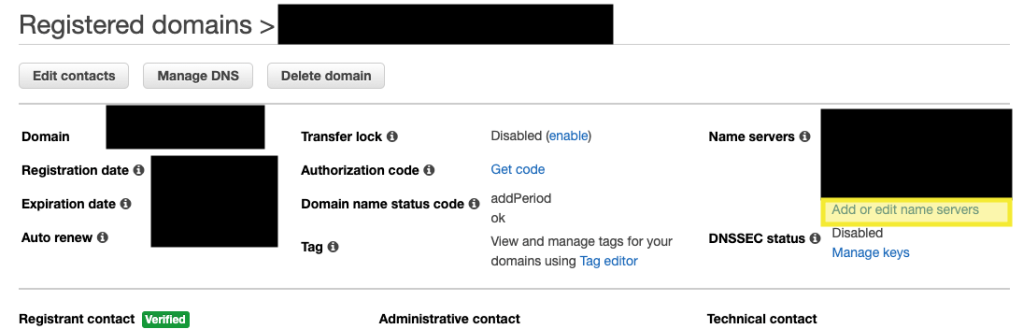
To start, open up the “Registered Domains” tab on Route 53: https://console.aws.amazon.com/route53/home#DomainListing

Then click on your domain and under name servers click “Add or edit name servers”:

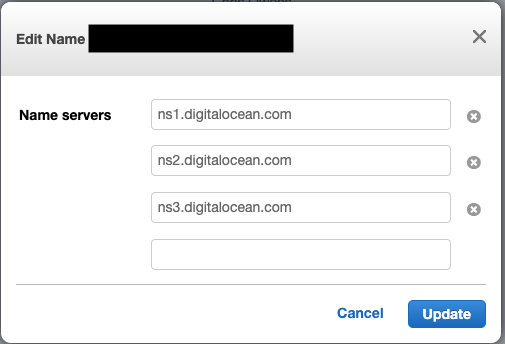
Replace the existing aws nameservers with the digital ocean ones and then click update:

The values that you’ll need to use are:

  • ns1.digitalocean.com
  • ns2.digitalocean.com
  • ns3.digitalocean.com

Note that these changes aren’t immediate. However, you should see a success message and receive an email notification stating the changes have been requested.

I found the AWS doco useful when trying to sort this one out: https://docs.aws.amazon.com/Route53/latest/DeveloperGuide/domain-name-servers-glue-records.html#updating-name-servers-other-dns-service